Below is a summary of the steps required to integrate a virtual tour into the booking engine's display section. The virtual tour can be integrated into the establishment's details page and also into the room/apartment details page:
How to configure a virtual tour on the establishment's details page?
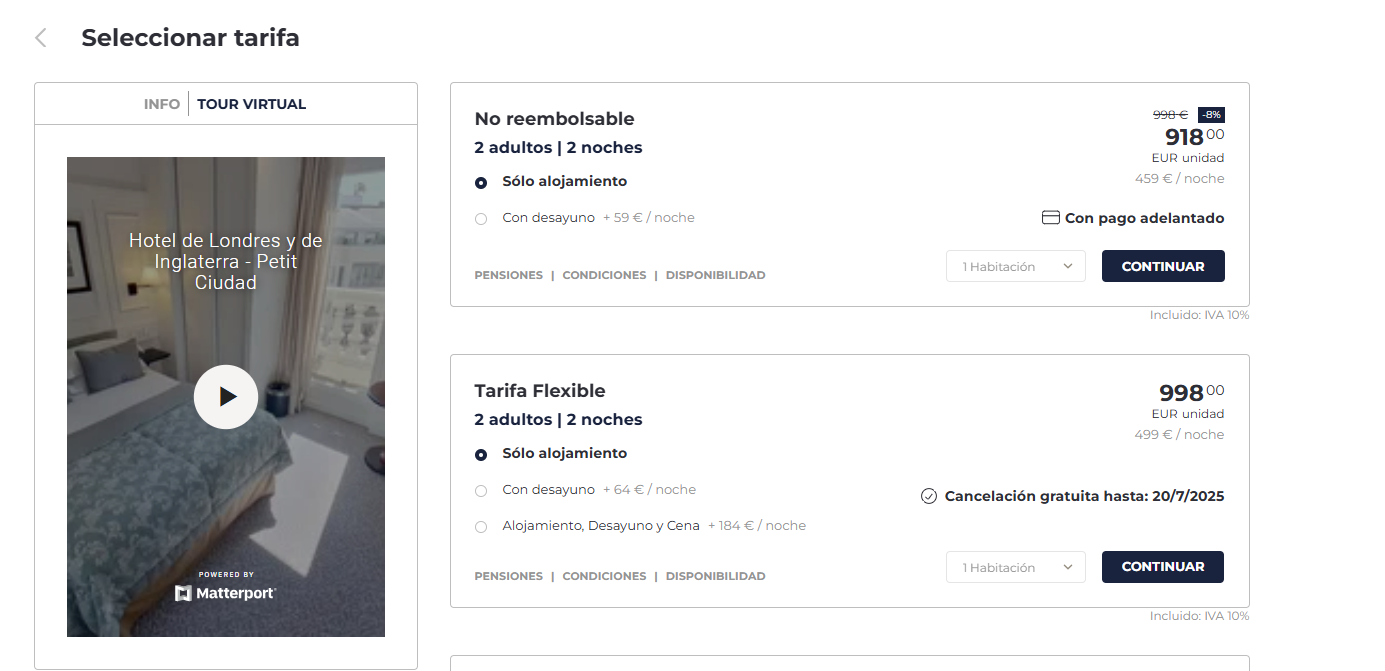
In Configuration --> Display and create a new entry:
1. Adapt the following code by entering the virtual tour URL provided by the supplier:
<iframe sandbox="allow-forms allow-scripts allow-same-origin" width="100%" height="480" src="ENTER-VIRTUAL-TOUR-URL-HERE" frameborder="0" allowfullscreen="" id="iFrameResizer0" scrolling="no" style="overflow: hidden;"></iframe>
2. Insert the adapted code into the “Content” field by accessing the "Code view" by clicking the icon with 3 dots located on the right. Once the code is inserted, press the <> icon again to see an image preview.
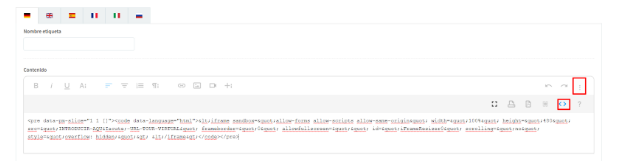
** The code must be entered in all languages enabled in the engine.
3. Configure the remaining fields as follows:
Active: Yes
Identifier: internal ID (cannot be repeated).
Booking window start date / end date: configure when you want to display the virtual tour only on specific dates. To display it always, do not enter any dates.
Show only for: Establishment
Show only for the following tickers: enter the engine ticker.
Label name: enter the name of the tab that will be displayed in the engine.
How to configure a virtual tour on the room/apartment details page?
In Configuration --> Display and create a new entry:
1) Adapt the following code by entering the virtual tour URL provided by the supplier:
<iframe sandbox="allow-forms allow-scripts allow-same-origin" width="100%" height="480" src="ENTER-VIRTUAL-TOUR-URL-HERE" frameborder="0" allowfullscreen="" id="iFrameResizer0" scrolling="no" style="overflow: hidden;"></iframe>
2) Insert the adapted code into the “Content” field by accessing the "Code view" by clicking the icon with 3 dots located on the right. Once the code is inserted, press the <> icon again to see an image preview.
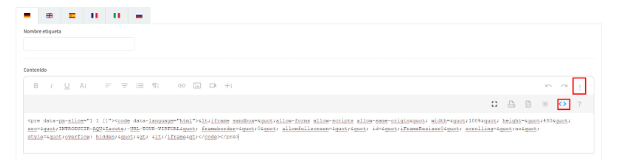
** The code must be entered in all languages enabled in the engine.
3) Configure the remaining fields as follows:
Active: Yes
Identifier: internal ID (cannot be repeated).
Booking window start date / end date: configure when you want to display the virtual tour only on specific dates. To display it always, do not enter any dates.
Show only for: Accommodation
Show only for the following tickers: enter the room/apartment ticker. To display the same virtual tour on multiple accommodation units, enter the tickers separated by commas.
Label name: enter the name of the tab that will be displayed in the engine.
Was this article helpful?
That’s Great!
Thank you for your feedback
Sorry! We couldn't be helpful
Thank you for your feedback
Feedback sent
We appreciate your effort and will try to fix the article