Below we summarize the steps to be taken to integrate a banner into the booking engine display section. This image can be integrated into the establishment's profile and also into the room/apartment profile:
How to configure an image or banner on the establishment's profile?
This example is shown to inform about a promotion:
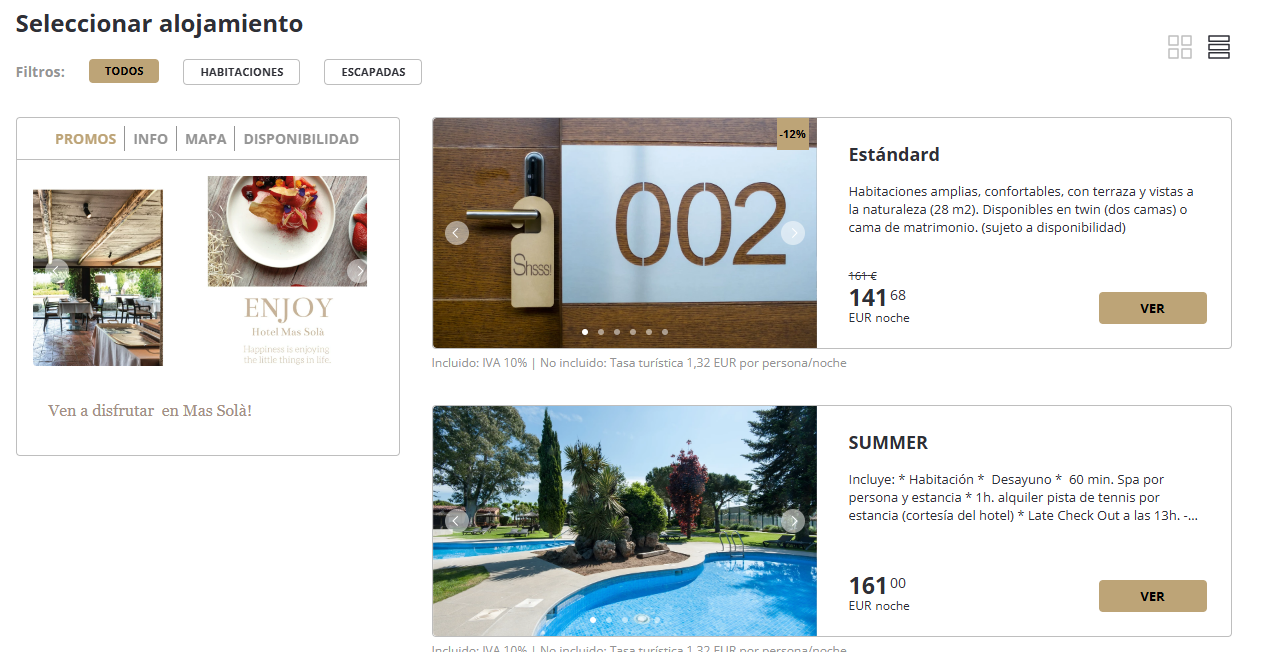
This example is shown to provide service information:
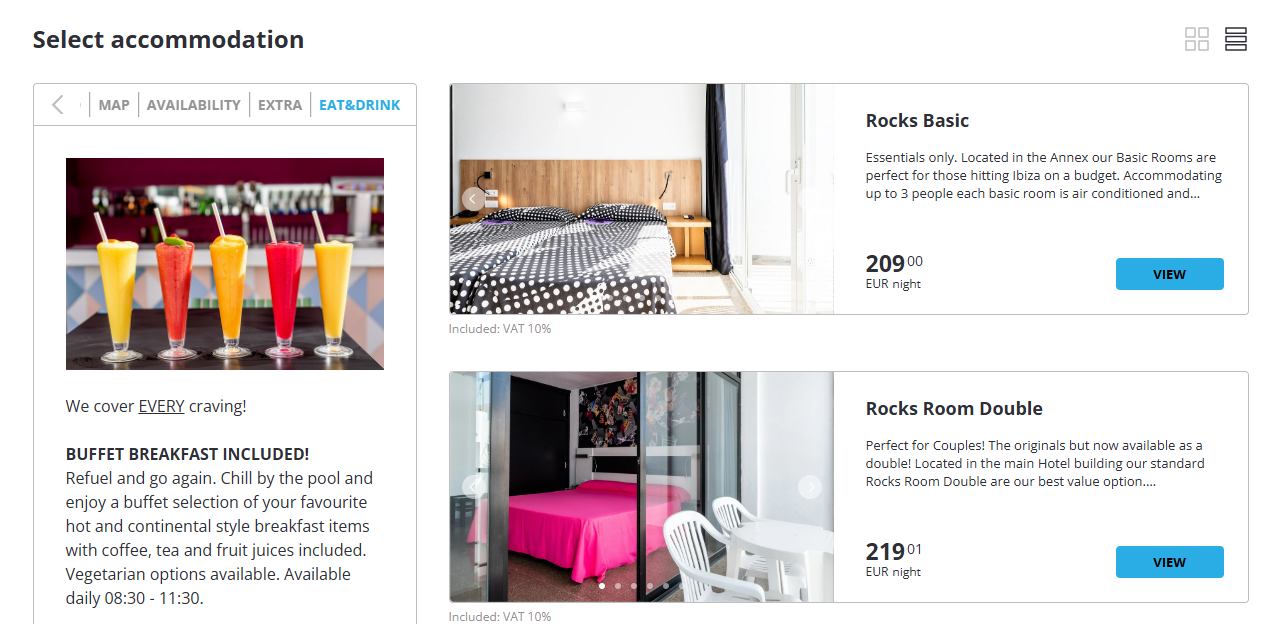
We will access Configuration --> Display in the Back Office and create a new one:
- Active: Yes
Opens by default: Enable the checkbox if you want the default image to be displayed instead of the establishment's information profile.
Identifier: internal id (cannot be repeated).
Start/End Date of Contract: configure when you want the banner to be displayed only on specific dates. To display it always, do not enter any dates.
Show only for: Establishment
Content Type: Image
Image: upload file
Label Name: enter the name or title of the tab that will be displayed in the engine.
Content: add text or description, it will appear below the uploaded image.
How to configure an image or banner on the room/apartment profile?
We will access Configuration --> Display in the Back Office and create a new one:
Active: Yes
Opens by default: Enable the checkbox if you want the default image to be displayed instead of the establishment's information profile.
Identifier: internal id (cannot be repeated).
Start/End Date of Contract: configure when you want the banner to be displayed only on specific dates. To display it always, do not enter any dates.
Show only for: Accommodation
Show only for the following identifiers (separated by commas): Add the ticker** of the accommodation or accommodations where you want to add the image.
** The accommodation ticker can be found in INVENTORY --> Define Inventory --> Accommodations > “Ticker” Column.Content Type: Image
Image: upload file
Label Name: enter the name or title of the tab that will be displayed in the engine.
Content: add text or description, it will appear below the uploaded image.
Was this article helpful?
That’s Great!
Thank you for your feedback
Sorry! We couldn't be helpful
Thank you for your feedback
Feedback sent
We appreciate your effort and will try to fix the article