This development allows the hotelier to make automatic charges on reservations according to the penalties configured in the cancellation policies linked to the conditions.It also allows charging the penalty during the reservation process when expenses have already been incurred at the time of confirming the reservation.
It also allows you to have a list of charge forecasts, executed charges, and the status of each one.
Next, we detail the specifications of this development.
Previous considerations before activation
To proceed with the activation of automatic charges, the establishment must have a tokenized payment gateway contracted that cards, you can check which payment methods our engine offers from this manual:All payment methods available in the booking engine
The hotel must have contracted a Witbooker service+ or higher to proceed with the activation.
How to activate automatic charges
To activate automatic charges, we will need you to send us a request through the client portal once we have activated it for you, one of our agents will notify you so that you can proceed with the configuration.
Configuration of automatic charges
The configuration of automatic charges is done from the configuration > policies of cancellation. In this section, two new columns will appear: “Automatic charges” and “Online charge of expenses”:
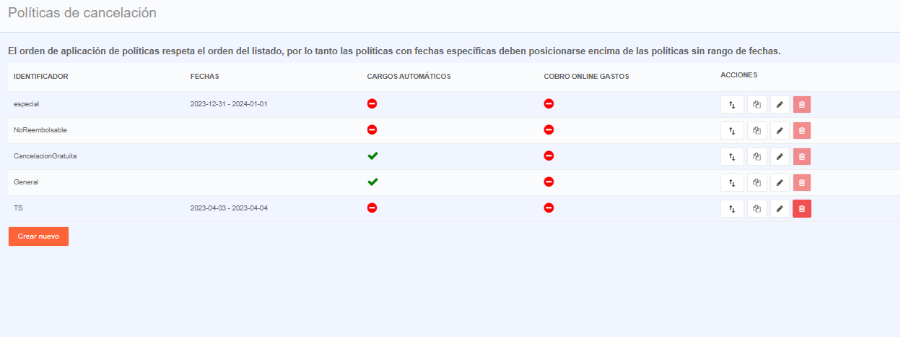
This way, both when editing a policy and when creating a new one, two new checkboxes will appear:
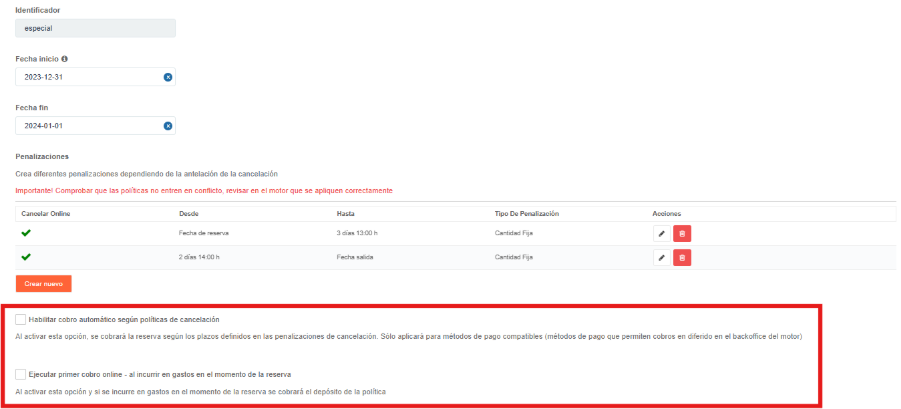
- Enable automatic charge according to cancellation policies: is used to charge the reservation according to the deadlines defined in the cancellation penalties.
- Execute first online charge - upon incurring expenses at the time of reservation: when activating this second option and if expenses are incurred at the time of reservation, the policy deposit will be charged.
Important: you can only activate “Enable automatic charge according to cancellation policies” or both checkboxes but you can never activate only “Execute first online charge - upon incurring expenses at the time of reservation”
List of automatic charges
It is a new screen accessed from Booking List / Expanded Booking List, using this button:
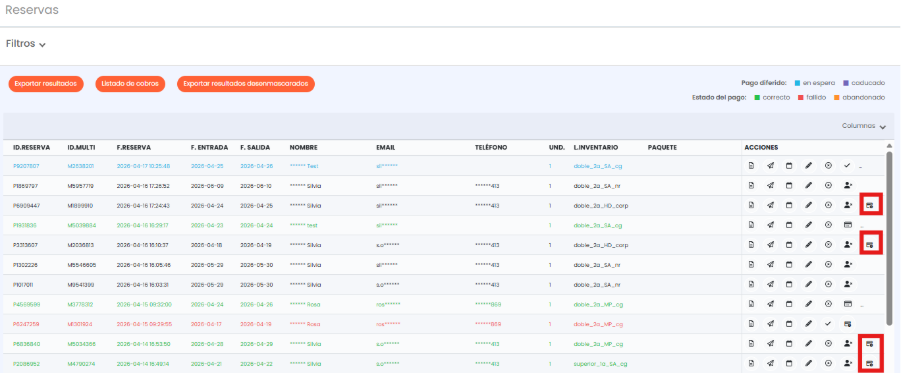
In this list, we find all the information related to the charge orders that are being generated.
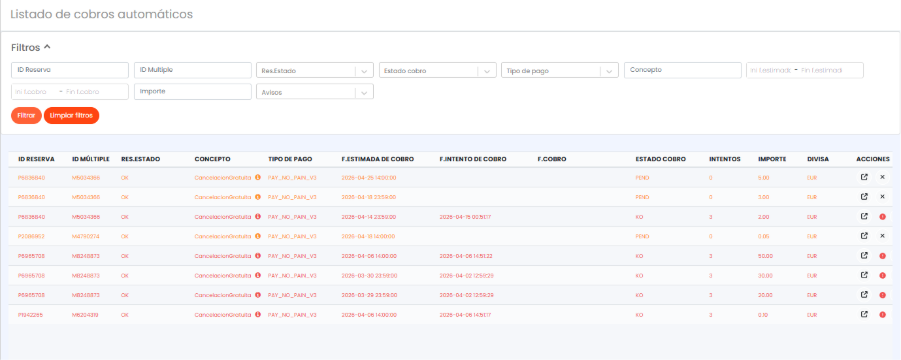
- Booking. Status: is the status of the reservation.
- Concept: is the ID of the cancellation policy.
- Estimated charge date: is pre-calculated and the time is indicated according to the property's time zone.
- Charge attempt date: date on which the charge is attempted successfully or not.
- Charge date: date on which the charge becomes effective.
- Charge status: indicates the status of the charge and will be updated as orders are executed according to the charge date.
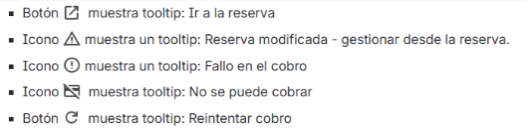
- Attempts: indicates the number of charge attempts.There will be up to 3 automatic charge attempts. If they are unsuccessful attempts, when the third one occurs, a new icon will appear in “actions” to retry the charge.
- In the actions column, we will see:
Final considerations:
Reservation modification: modificationfrom the BO or as a client from the reservation, pending future charges are cancelled, the cases are:
Change of check-in or check-out
Inventory change
Amount change
Change in guarantee amount
Change in extras
Cancellations: when there is a cancellation, the reservation status column is updated, and the status of charge orders that have not been executed becomes Cancelled. On the other hand, charge orders for cancelled reservations remain in the charge ok status.
- Emails:
- Once the 3 automatic charge attempts have been made and failed, an email is sent with the subject: Automatic Payment Failure - {ticker_motor}, Mxxxxxxx | Pxxxxxxx
- For modified or cancelled reservations, the email sent has the subject: Automatic Payment Cancelled - {ticker_motor}, Mxxxxxxx | Pxxxxxxx
- The email is sent to the reservation confirmation recipients
- “Make charge / refund” section of “View reservation”: at the time a charge order is executed, it will appear in the transactions list section of the reservation's “view details”. From there you can continue making charges and refunds.
- In cases where there is an “M” with several “P”s and the estimated charge date coincides, the charge orders will begrouped and a single order will be issued.
Was this article helpful?
That’s Great!
Thank you for your feedback
Sorry! We couldn't be helpful
Thank you for your feedback
Feedback sent
We appreciate your effort and will try to fix the article