What are aggregator engine filters?
Filters allow you to narrow down accommodations based on customer preferences: type, price, services, free cancellation, etc.
From the BackOffice, you can configure which filters are displayed, in what order, and whether to add custom filters adapted to each property or chain.
Configure Establishment Services (Amenities)
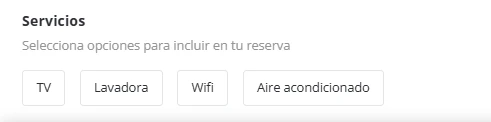
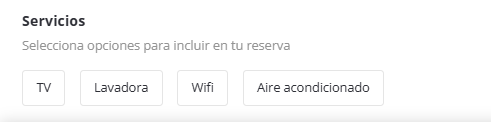
Before the Services and Features filters appear in the aggregator, each property must configure its amenities. When configured in individual engines, they will appear in the aggregator filter based on whether they are “Services” or “Features”. These amenities ARE NOT displayed in individual engines, only in the aggregator.
Where is it configured?
Configuration → Establishment Info → Establishment Services
Find the "Establishment Services" block.
Click on the field to expand a list of all services in the Witbooking catalog. (Only those can be used)
You can search by text to find a specific service (e.g.). "pool", "wifi", "parking").
Select services.
Save.


Important things
Free text cannot be entered. Only services from the official Witbooking catalog can be selected.
There is no strict limit on services, but it is recommended to select only those that truly apply.
These services will ONLY appear in the aggregator engine filters (Services and Features sections), not in the individual engine filters.
How to create and edit filters.
To configure the rest of the filters, go to Establishment Info. establishment > Filter Management. Click Create New and the following configuration fields will appear:
Active (checkbox)
✅ Activated: the filter is displayed in the engine.
❌ Deactivated: the filter is NOT displayed in the engine.
Ticker: free text field to identify the filter internally.
Location (dropdown): select where the filter will be displayed.
Modal - accommodation list
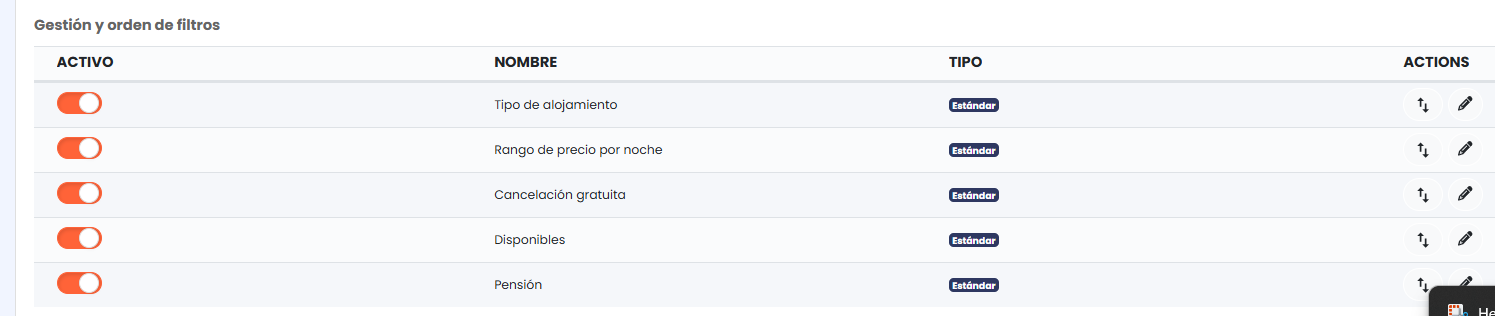
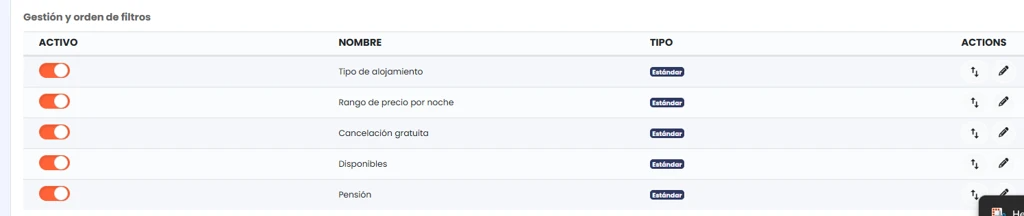
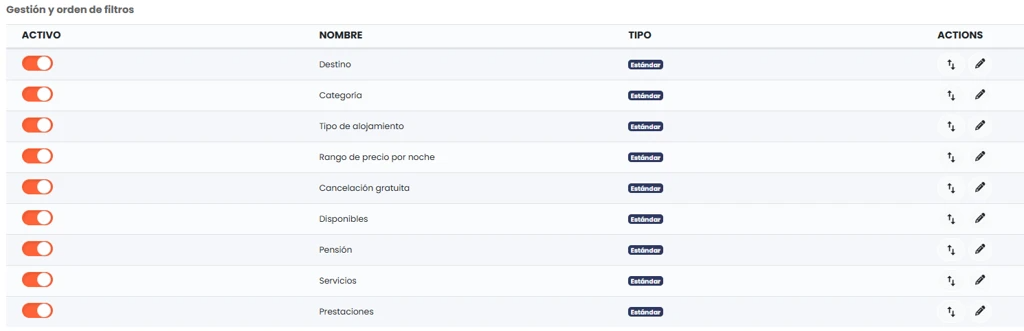
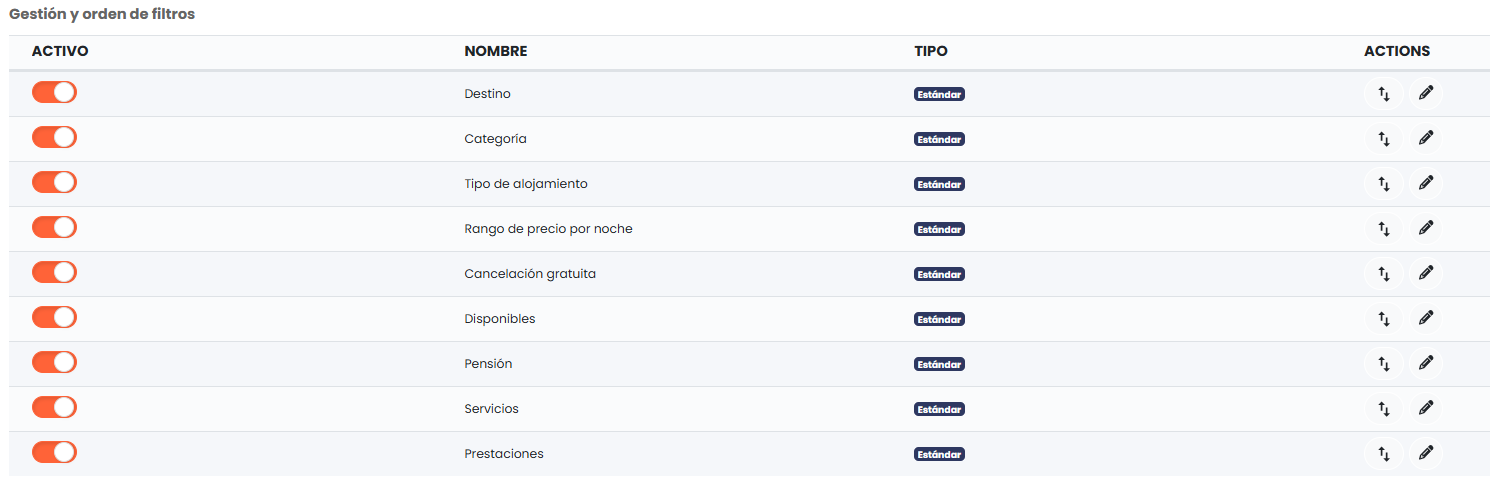
Filter Management and Order: table where you can view, sort, and manage all available filters. There are two types: Standard and custom.
Standard filters
Default filters that come pre-created appear. They cannot be deleted, but they can be activated/deactivated, reordered, and their name and description edited.
Individual Engine:
Accommodation type
Price range per night
Free cancellation
Available
Board basis
Aggregator Engine (also includes):
Destination
Category
Services
Features
Custom filters
These are filters created by you to cover specific needs that standard filters do not address. They can be created, edited, deleted, and reordered.
When created, they appear in the last position of the table.
They are only displayed in the engine if they are marked as active.
How to create custom filters?
Clicking Create New opens a configuration modal:
Ticker: Identification
Title: enter the name of the custom filter section.
Description: add a description if you wish.
Click + Add New to create each chip:
Chip Name: the text the guest will see.
Associated Accommodations/Properties: select which accommodations (individual engine) or properties (aggregator engine) will be filtered when that chip is selected.
You can create as many chips as you need.
Save changes.
Was this article helpful?
That’s Great!
Thank you for your feedback
Sorry! We couldn't be helpful
Thank you for your feedback
Feedback sent
We appreciate your effort and will try to fix the article