For the client and the hotel to receive the booking confirmation, the system automatically sends an email to both at the moment the booking is made.
In the Witbooking Control Panel, you should access Communication > Confirmation Email.
To access this section, you must have the "email admin" permission. To obtain it, please request it by sending a ticket via MySepteo.
Below are the main fields of this interface:
- Booking confirmation recipients: List of addresses that will receive a copy of the booking confirmation. You can assign as many email addresses as you wish, separated by commas. Example: reservas@email.com, reservas2@email.com
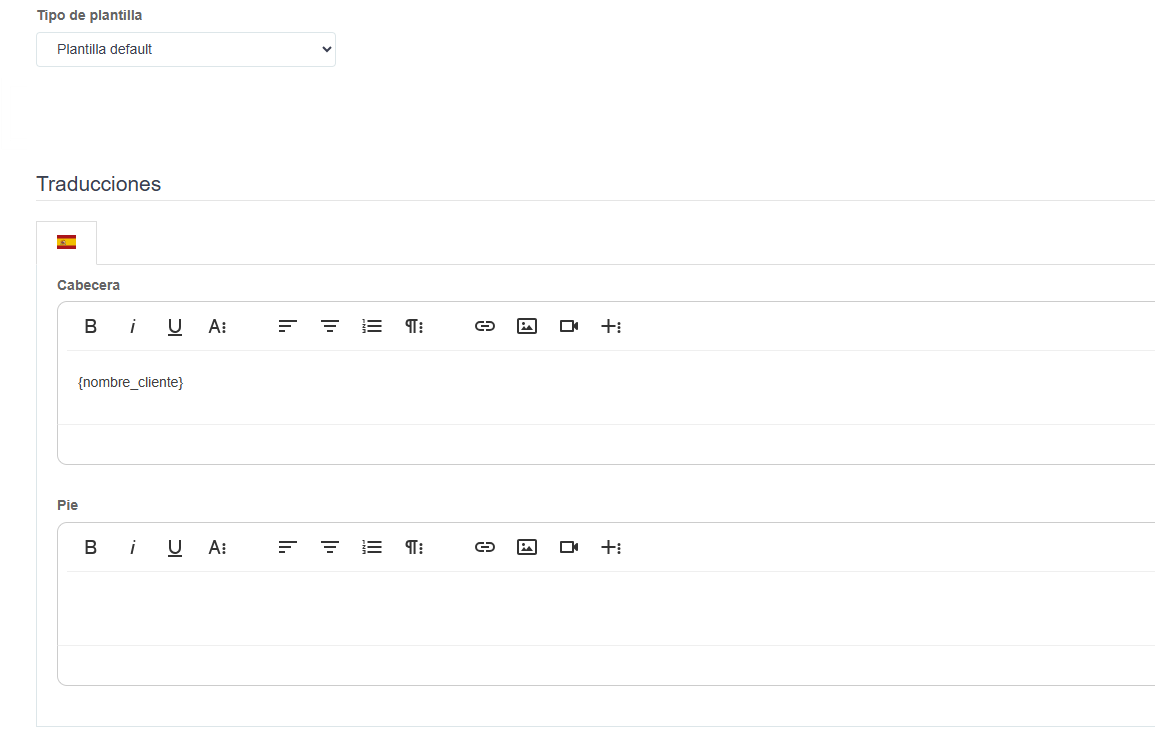
- Sender Name for emails: Name that will appear as the sender of the emails.
- Email language for the hotel: Language in which the hotel will receive a copy of the confirmation. It is possible to select a general language for all clients or to select the language in which the client makes the booking. To do this, you must select "Original from client's copy".
- Reply to: If the client decides to reply to the confirmation email, the reply will be sent to the address indicated in this field. The sender of the booking confirmation email is no-reply@email.com by default. To set a custom sending address, follow the steps in the following manual: How to configure an email account as the sender of automatic emails
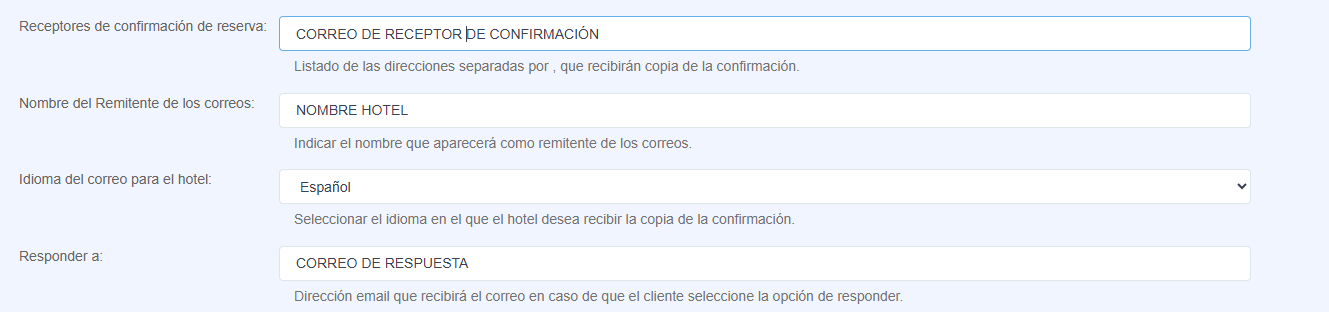
The booking confirmation email includes the booking details and allows for customization of the header, footer, and logo.
- Logo: Configure in Settings > Appearance.
- Header: Enter text that will appear before the booking voucher.
- Footer: Enter the final text that will appear after the booking voucher.
Additionally, custom fields can be inserted, which will be replaced by the client's or booking's data.
- Client name: To personalize the email according to the name of the client who made the booking, you must include the text {nombre_cliente}.
Finally, you must select Save to apply the changes correctly.
Was this article helpful?
That’s Great!
Thank you for your feedback
Sorry! We couldn't be helpful
Thank you for your feedback
Feedback sent
We appreciate your effort and will try to fix the article