Linking a virtual payment gateway (POS) with the booking engine will be useful for automating the payment process and receiving immediate collections when bookings are made. It should be noted that this payment method does NOT tokenize credit cards, which means that second charges cannot be made.
The service must be contracted directly with the bank, and they will provide the necessary credentials to configure it in the Back Office of the booking engine.
The data that should be requested from the bank providing the payment gateway are the following:
Redsys
- Encryption key
- MerchantCode
- MerchantTerminal
- MerchantCurrency
- Url
When configuring a payment gateway, it is recommended to perform tests in a test environment before starting to receive real collections. For this purpose, banks usually provide test environment credentials. Once the correct functionality is verified, they will provide the definitive (production) credentials.
Below we summarize the steps that must be carried out to link a payment gateway with an active booking engine:
1. Go to: Setup --> Payment Methods --> POS and enter the credentials provided by the bank. The URL field must be filled in according to the environment in which you are working:
- When configuring in a test environment: https://sis-t.redsys.es:25443/sis/realizarPago
- When configuring in a production environment: https://sis.redsys.es/sis/realizarPago
(Once the credentials provided by the bank have been entered, always use this URL regardless of whether the engine is in Demo or LIVE)
2. We will proceed with the tests with a TEST condition:
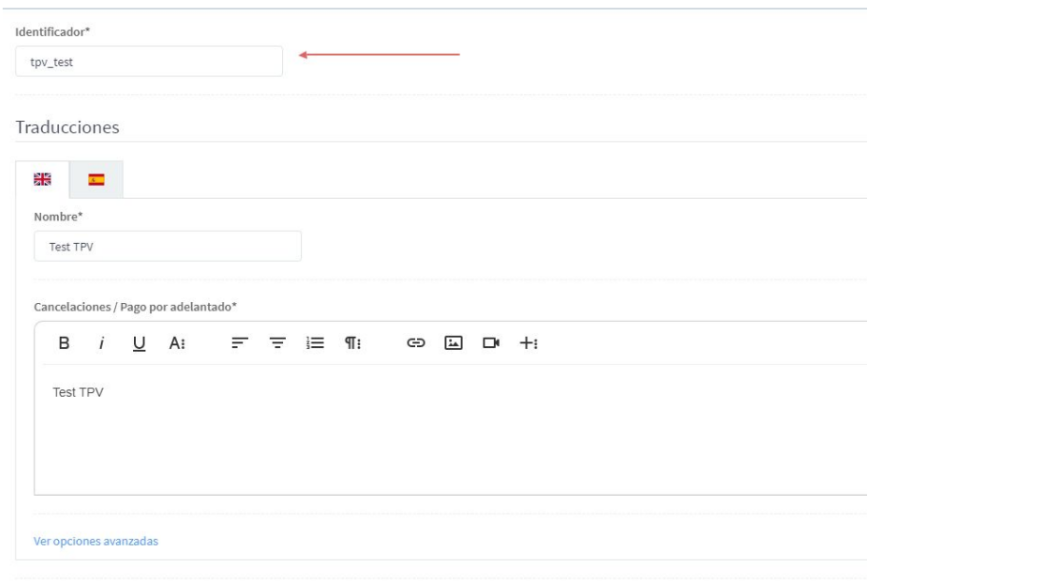
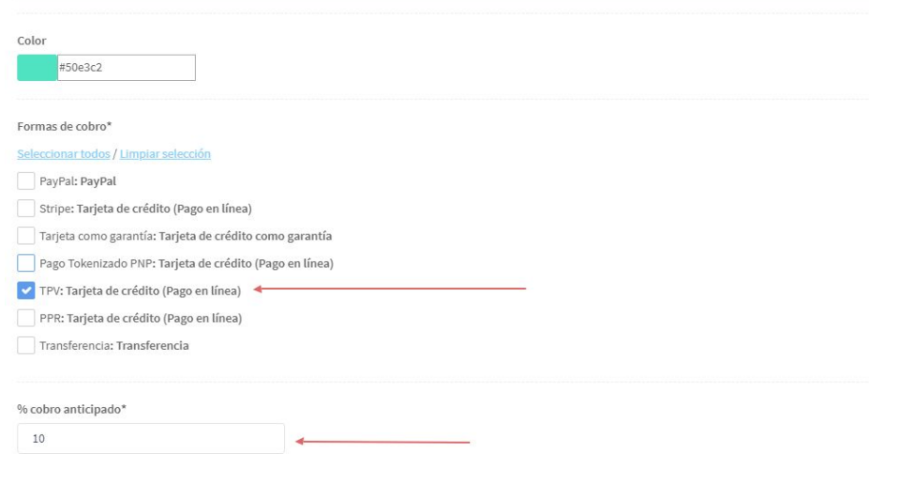
Go to: Inventory --> Define Inventory --> Conditions --> Create New and create a new condition called TEST POS, linking the POS as a payment method. (Important to set an advance payment %) and we will also link another payment method. That is, to the TEST POS condition we link the POS payment and another, which has 2 payment methods linked:
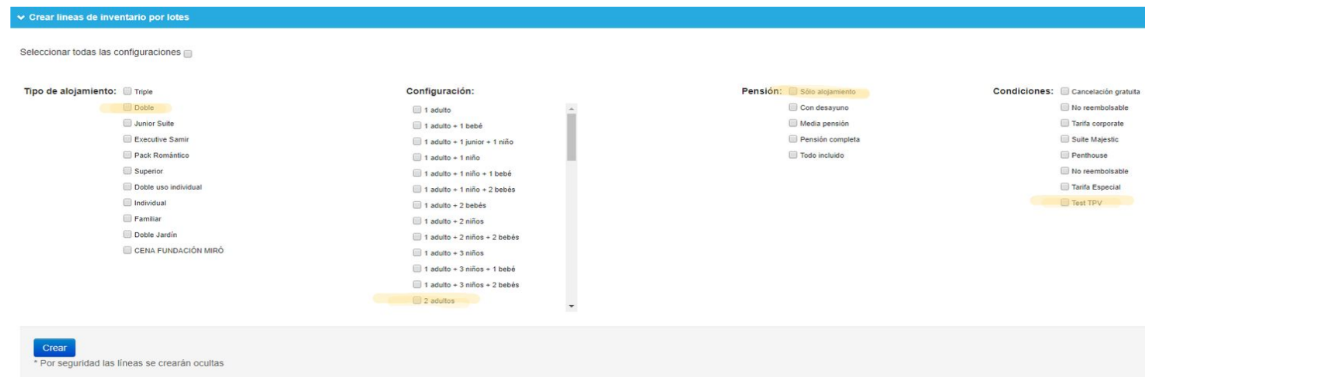
3. Go to: Inventory --> Define Inventory --> Create Batch Inventory Lines and create an inventory line with the new rate “Test POS” to perform tests.
We will enter the access code test in the codes column and the word Own in the block column and save the file.
We return to the "Edit Inventory by Excel" section and import the file we have processed previously.
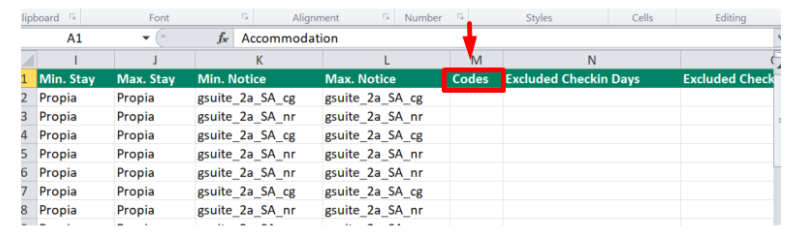
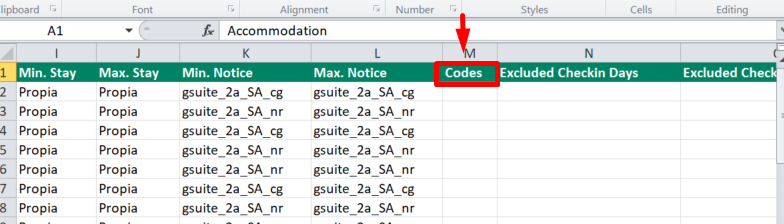
The inventory line will only be visible when entering this code at the time of making the reservation.
5. Go to: Inventory > Define Inventory > Inventory Table > Actions and activate the line's visibility by clicking on the first icon.
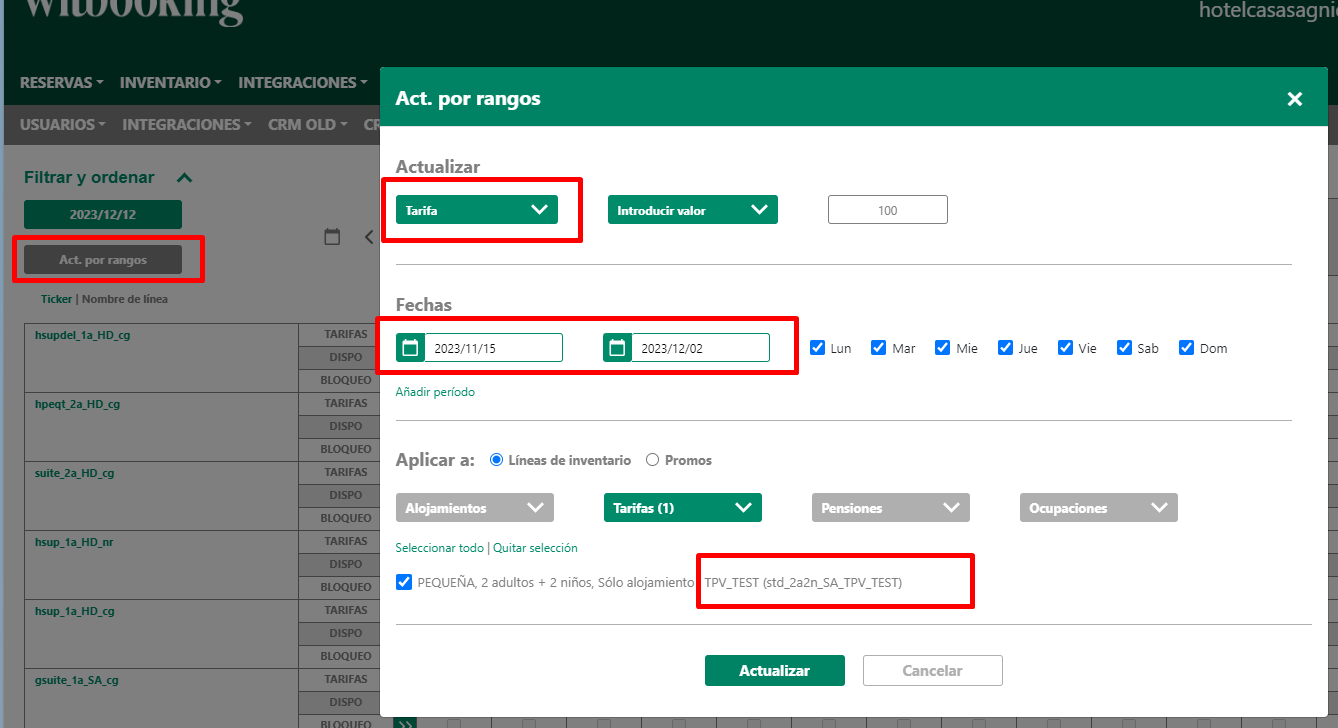
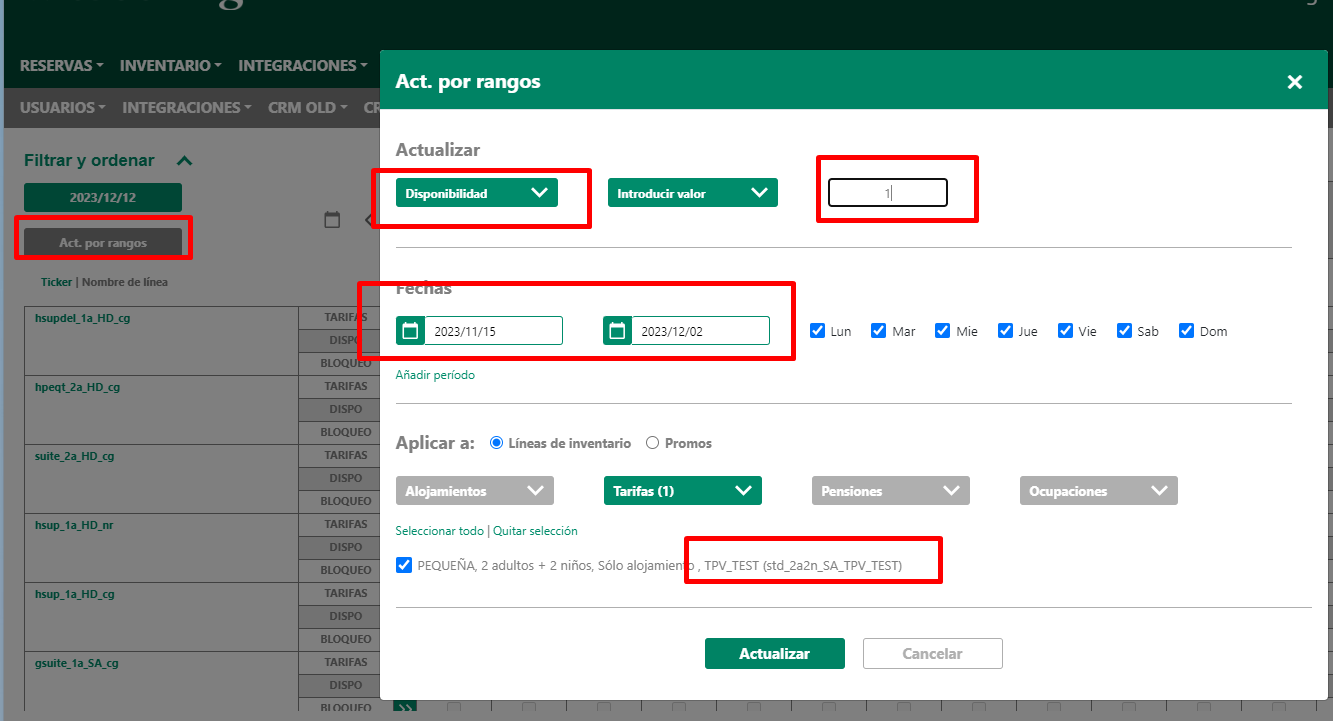
6. Go to: Inventory > Management > Update by Ranges and assign values to the “Rates” and “Availability” columns in the newly created inventory line.
7. Go to: Reservations > Enter Reservation.
- Perform an availability search by entering the blocking code, configured in step 4, in the “code/coupon” field in the header.
- Make a test reservation with the “Test POS” rate by entering the credit cards provided by the bank for OK / KO operation tests.

8. After configuring in the test environment, if the tests are satisfactory, you must request the credentials from the bank to operate in the REAL (production) environment and repeat the process with the production environment credentials.
9. Link the new payment method to the corresponding conditions, by accessing Inventory > Define Inventory > Conditions, editing an existing condition and linking it to the payment system.
Was this article helpful?
That’s Great!
Thank you for your feedback
Sorry! We couldn't be helpful
Thank you for your feedback
Feedback sent
We appreciate your effort and will try to fix the article